User guide
Save and recover
Choose a save location in File → Save As:
- Browser: reopen from Recent files on Home. Projects stay on the current device and browser and do not sync.
- File Manager: save a file on your device. Browsers without a save dialog download the file.
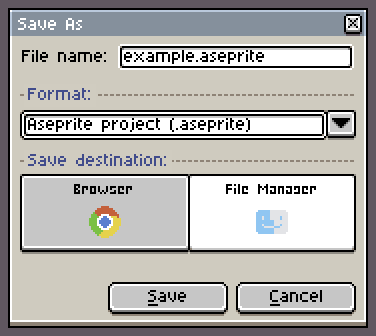
Clearing site data deletes browser projects and recovery backups. Save to File Manager before changing devices or browsers, or clearing site data.
If saving fails, keep the page open and choose Retry saving, or use Save As → File Manager to keep a file copy.
Use Recover Files… on Home to find editing backups. To delete a browser copy, close the project first, then choose Delete browser copy from its Recent files menu.
Arrange your workspace
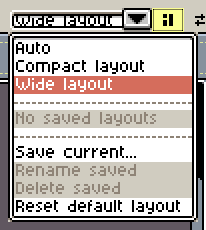
Use Workspace layout beside the document tabs to arrange panels.

- Drag panel handles or tabs and follow the drop guides to dock panels, place them side by side or combine them as tabs.
- Open a panel handle or tab's menu to float it or Collapse to button.
Auto chooses a layout based on the available window space.
Use Save current... to save an arrangement. Changes to a selected saved layout update it; save a new copy first to keep the old arrangement.
Show and hide controls
Menu bar and toolbar toggles are in View → Show.
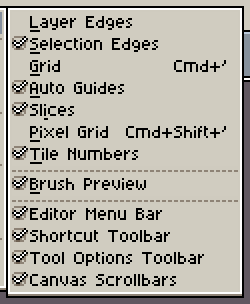
After hiding the menu bar, use Menu on the left of the document tabs to reopen View → Show. After hiding the tool options toolbar, click the selected tool to open its settings.
Swipe along the tool rail to reach tools that do not fit. A horizontal rail also supports mouse wheel and trackpad scrolling.
Mouse, trackpad and shortcuts
By default, the mouse wheel zooms the canvas, two-finger trackpad slides pan it, and pinching zooms it.
If device detection is inaccurate, choose Mouse wheel or Trackpad in Edit → Preferences → Editor → Wheel device. Canvas wheel and two-finger slide zoom settings are in the same section.
If your browser or operating system reserves a shortcut, use the menu or Shortcuts panel, or change the binding in Edit → Keyboard Shortcuts.
Fingers and a pen
Default gestures:
- Drag with two fingers to pan the canvas.
- Pinch with two fingers to zoom. Zoom snaps to a zoom level on release.
- Tap with two fingers to undo.
- Tap with three fingers to redo.
- Hold two or three fingers still to repeat undo or redo.
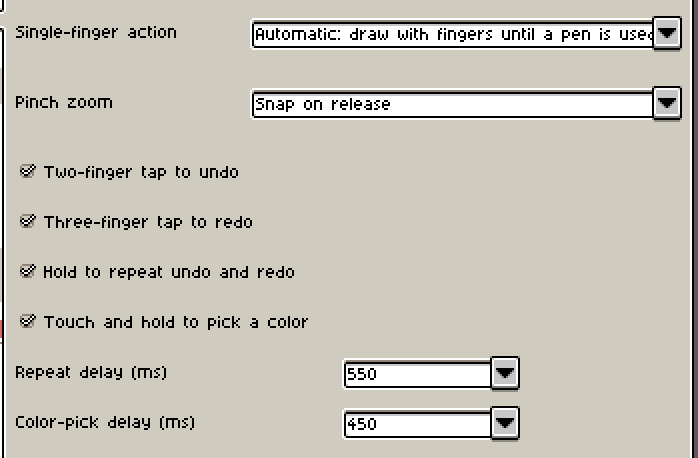
- Touch and hold with one finger to pick a color.
Fingers can draw until you use a pen. After that, fingers pan and the pen draws.
To always draw or pan with fingers, choose a mode in Edit → Preferences → Touch → Single-finger action. This section also controls pinch zoom, undo and redo gestures, color picking and hold delays.
Shortcut toolbar
Find it in View → Show → Shortcut Toolbar. Direction buttons move a selection one pixel at a time; Constrain, From Center and Duplicate Drag replace the corresponding keyboard modifiers.
With Rectangular Marquee, Elliptical Marquee or Lasso in Replace or Intersect mode, tap outside the selection to clear it. This also works when fingers are set to pan; dragging still pans the canvas.
Paste an external image
Pasting images from another app may require browser clipboard permission.
If pasting fails, open the image as a file, then copy it into the target project within Xprite.
Pick a color from the screen
Hold Alt (Option on Mac) and click the foreground or background color button to sample colors outside the editor.
If your browser does not support screen color picking, open the image in Xprite to sample its colors.
Add to desktop and use offline
- Chrome or Edge: choose Help → Add to desktop. If that item is unavailable, use Install app in the browser menu.
- Safari on Mac: choose File → Add to Dock….
- Safari on iPhone or iPad: choose Share → Add to Home Screen. Share may be inside the Page Menu.
Open the editor online before using it offline. If it does not open offline, reconnect and open it again.
Share a sprite
Choose File → Share..., then use Copy link to send the link or Save QR code to share the code. The recipient can open the link or scan the code to open the sprite.
Drawing replay
Choose Sprite → Drawing Process → Start recording. Stop recording opens the replay; Continue recording appends to it.
Use Drawing Replay… to view a recording. Export… saves a .xprite-replay file, and Open replay… plays it. The export dropdown also offers Export canvas GIF….
Replays are saved with browser projects, but are not included in PNG or Aseprite files. Export a separate .xprite-replay before changing browsers or devices.
Report a problem
Choose Help → Problems and suggestions, or Feedback on the right side of Home. You can also use GitHub Issues.
When diagnostic logs are needed, export them from Edit → Preferences → Diagnostics or from the editor error dialog.